Getting Started
Quickstart
Connect ProductEcho to your AI coding agent and deploy your first application.
Install and connect your agent
ProductEcho connects to Claude Code, Cursor, Codex, and any other MCP-compatible agent. Install it, then authorize once over OAuth — no API key to copy for interactive use.
See install steps for your client →Headless script or CI pipeline?
The connection guide covers the static pe_live_... API key fallback for that case. Never paste a static key into an agent chat or prompt.
Deploy your first application
Once ProductEcho is connected, ask your AI agent to build and deploy your application in natural language.
Agent prompt
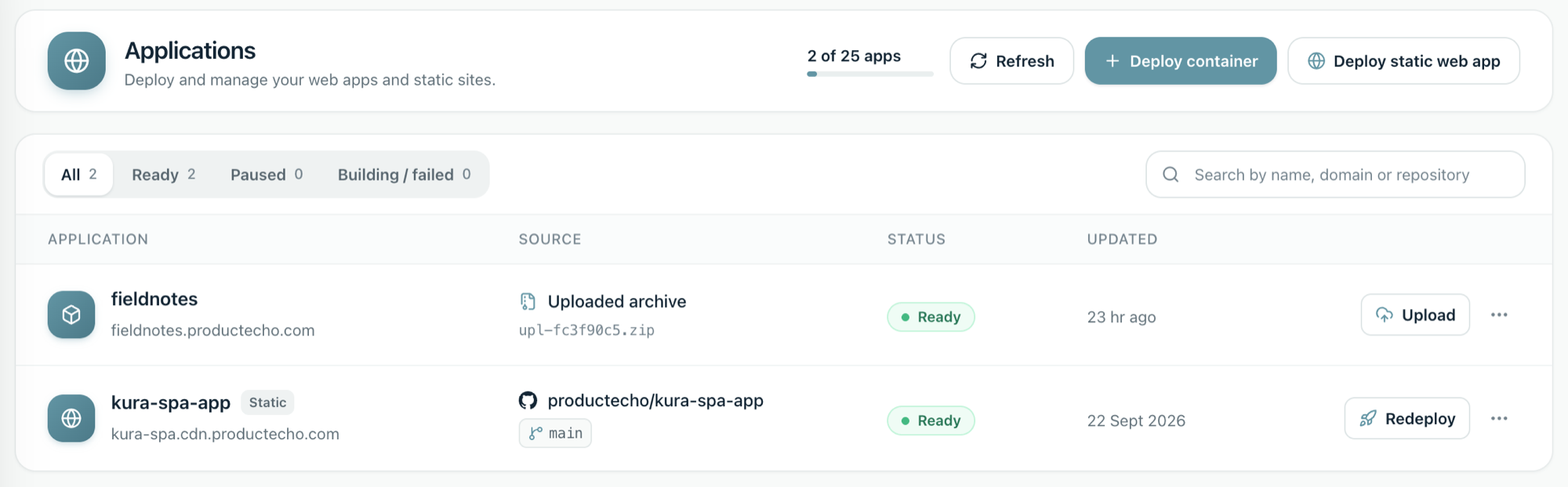
When it finishes, your app appears under Application in the ProductEcho console with its status and public address.
app.productecho.com/dashboard/deploymentsFull size
You're ready
Your AI agent can now use ProductEcho to provision infrastructure and deploy applications.