
Deploy from Codex to a Live URL with MCP
Can Codex deploy an app? Yes, with an MCP server. Add ProductEcho to Codex, run one prompt and get a live HTTPS URL, with PostgreSQL if needed.
Can Codex deploy an app?
Yes, once it has a tool that does the deploying. Codex writes and runs code in your project but does not host the result. Add ProductEcho to Codex as an MCP server and one prompt is enough: the agent reads your project, creates a PostgreSQL database if the app needs one, uploads the code, deploys it, and gives you a public HTTPS URL.
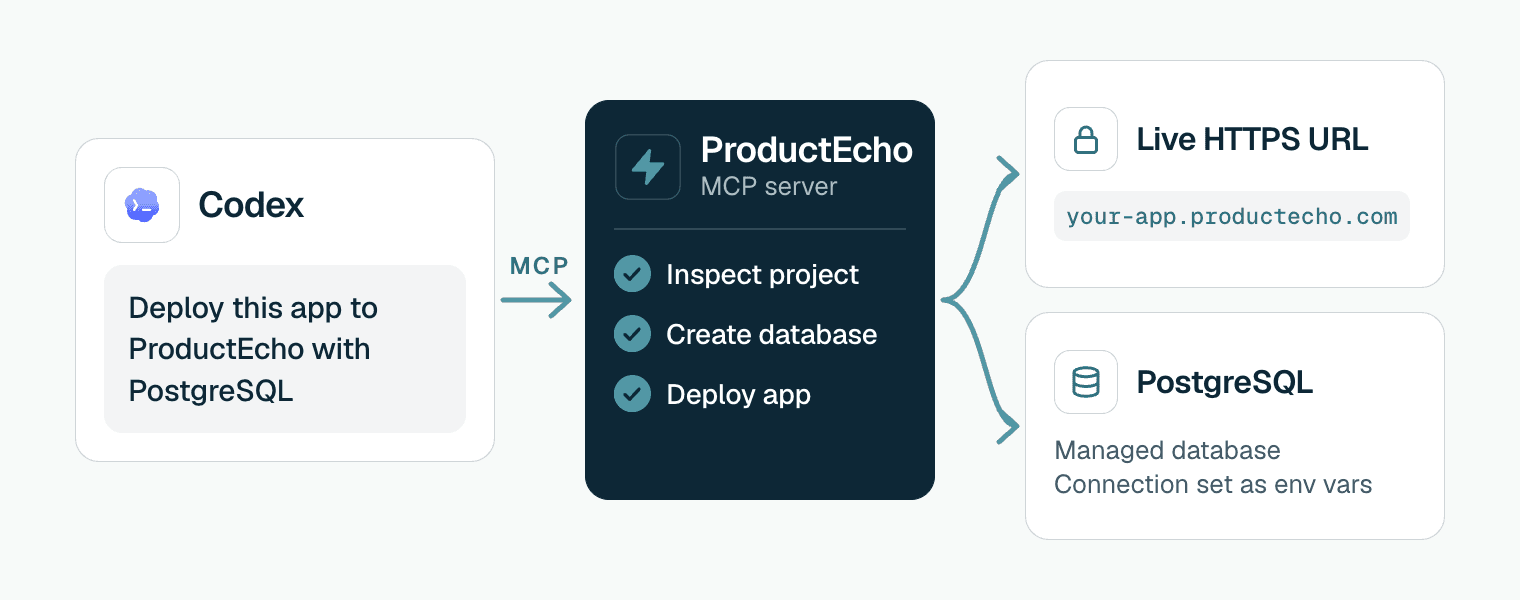
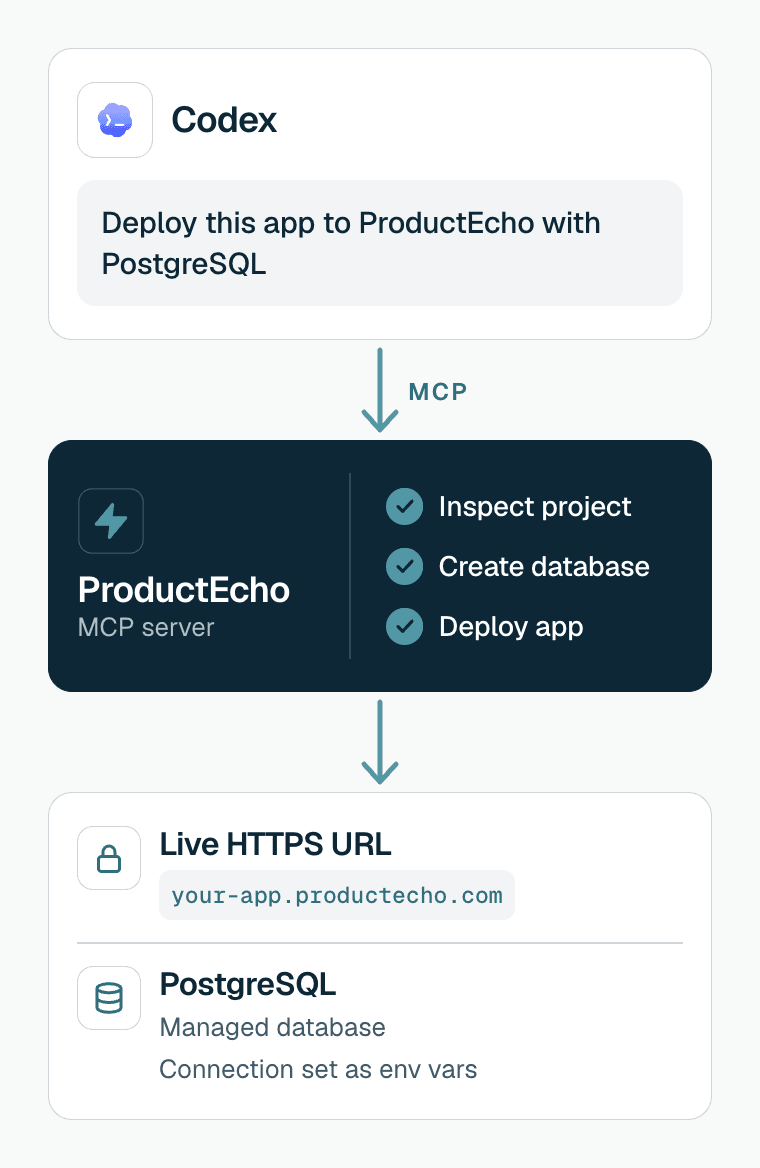
It works the same in the Codex CLI, the desktop app and the IDE extension, because they share one MCP configuration. This page is about deploying apps and websites you built with Codex, not about installing Codex itself.
Add ProductEcho to Codex
Codex keeps its MCP servers in ~/.codex/config.toml. From a terminal, one command writes the entry and a second signs you in:
codex mcp add registers the server and may not sign you in by itself, so run codex mcp login productecho as well. It opens a browser window where you sign in and approve access to your ProductEcho workspace. The consent covers workspace discovery, deployments and database management, and no API key is involved. Run codex mcp list to confirm the entry, or type /mcp in a Codex session.
In the desktop app or the IDE extension
Open the MCP servers settings
Add the server
productecho, pick Streamable HTTP and enter https://api.productecho.com/mcp. Save, then restart the app or the extension.Sign in
Or edit config.toml yourself
A project can carry its own .codex/config.toml, but Codex only reads it for projects you have marked as trusted. After saving, sign in with codex mcp login productecho.
Setup for other MCP clients and the API-key route for headless use is in Connect an MCP client. The same deploy from other agents has its own guide for Claude Code and Cursor.
Add the deploy skills
The MCP server gives Codex the tools. The skills give the agent ProductEcho's instructions for using them: how to inspect a project, what each runtime needs, and how to create and wire a database. Install them once:
This copies four skills into ~/.agents/skills, a folder Codex scans for your own skills. Codex picks up new skills on its own, and a restart helps if they do not show. Type $productecho-deploy to run one by name, or run /skills to see the list. You can also just ask in plain language, and Codex chooses the skill when the task matches.
Deploy with one prompt
Open your project in Codex and run:
Drop "with PostgreSQL" if the app has no database. To call the skill by name, start the message with $productecho-deploy. When the deploy finishes, the agent prints the URL.
The agent zips your project and uploads it with a shell command. Codex's default sandbox keeps network access off for commands, so on the default settings Codex asks you to approve that command. Check that it uploads a .zip of your project to the address the deploy tool returned, and nothing else.
What the agent does during a deploy
Looks up your workspace
get_workspace_info to read your plan limits and the apps and databases you already have.Inspects the project
inspect_application_source to find the framework, the port and the environment variables the app expects, and to decide between a container and a static site.Creates the database
Uploads a clean copy of the code
node_modules, .git, build output, .env files and keys. This is the step Codex asks you to approve.Deploys and waits for Ready
deploy_application, then checks get_application_status until the app is Ready and returns its public HTTPS address.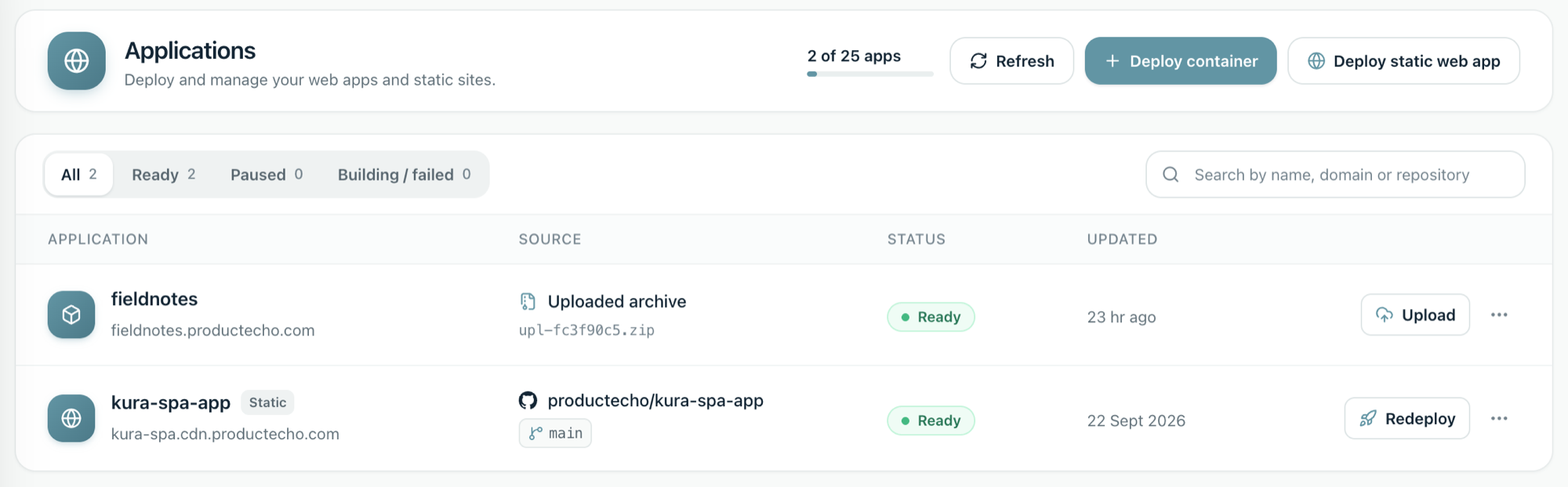
What you can deploy from Codex
Server apps run as containers and single-page apps that build to static files are served from a CDN. The project inspection decides which one fits, and projects with a Dockerfile always run as containers. What each runtime needs:
- Node.js, Next.js and Express: runtime packages belong in
dependencies, and the app must listen onPORTand bind to0.0.0.0. - Python (FastAPI, Django, Flask): a production server in
requirements.txtand a start command, from a Procfile or one you confirm. - Go:
go.modandgo.sumat the project root, and the app readsPORT. - Java (Spring Boot, Quarkus, Micronaut): the
./mvnwor./gradlewwrapper in the project.
In a monorepo, the agent asks which project to deploy; see deploying one app from a monorepo.
Keep control of production
ProductEcho flags deploys, environment updates, pauses and deletes as destructive. Codex's documentation says an MCP tool call with a destructive annotation always needs your approval, unless the tool is also marked read-only, so you see each one before it runs. Three habits keep that review meaningful:
- Read the prompt for
deploy_application,update_application_envand any tool whose name starts withdelete_. The sign-in grants write access, and that includes deleting apps and databases. - Set
default_tools_approval_mode = "writes"on the ProductEcho entry. Codex then prompts for every tool that is not marked read-only, which includes every deploy, environment, pause and delete tool. - Take the delete tools away.
disabled_toolsis a deny list, so Codex will not call the tools named on it.delete_applicationanddelete_postgresare the two that remove an app or a database.
Keep secrets out of the code. The upload skips .env files, so set values as environment variables and let the agent read them back with sensitive values masked. To go back to an earlier version, ask the agent to redeploy that version of your code.
Fix the common problems
ProductEcho does not show up in Codex
Run codex mcp list, or type /mcp in a Codex session. If ProductEcho is missing, check that ~/.codex/config.toml has a [mcp_servers.productecho] table with the url, then restart Codex. A server defined in a project's .codex/config.toml is ignored until you trust that project. A typo in a setting name or value stops Codex from loading the file, and its error message names the line.
The sign-in does not finish, or the tools say unauthorized
The server answers 401 until you approve access in the browser window. Run codex mcp login productecho and finish that step. In the desktop app or the IDE extension, select Authenticate on the ProductEcho entry. If it stays stuck, run codex mcp remove productecho, add it again and sign in again.
Codex runs on a remote machine and the browser cannot reach it
After you approve access, the browser is sent back to a local address that Codex listens on, http://127.0.0.1/callback by default. On a remote machine or a devbox your browser cannot reach that address. Set mcp_oauth_callback_url in ~/.codex/config.toml to an address your browser can reach and sign in again. ProductEcho accepts HTTPS and local callback addresses.
The skills are missing
Check that ~/.agents/skills/productecho-deploy exists, run the install command again if it does not, then restart Codex and run /skills.
The deploy finished but the URL shows an error
Ready means the container started, not that your routes work. A gateway error usually means the app listens on the wrong port: it must bind to 0.0.0.0 and read the PORT variable. Ask the agent to check the port and redeploy, or follow why a deployment returns 502.
A Python deploy was refused
Without a Procfile, a Python app needs a start command. The agent proposes one from your code and asks you to confirm it before deploying.
Questions
Does Codex need a hosting account to deploy?+
Yes. Codex does not host anything itself, so you need a ProductEcho account. There is a free plan and no credit card is needed to start.
Do I need an API key to use ProductEcho in Codex?+
No. Codex signs in over OAuth, so you approve access in the browser after running codex mcp login. A static API key is only for scripts and CI that cannot complete a browser sign-in, and the connection guide covers that case.
Does this work in the desktop app and the IDE extension, or only the CLI?+
All three. They share one MCP configuration, so the server you add in one is available in the others on the same machine. In the app and the extension you add it under MCP servers in the settings and select Authenticate.
Can Codex deploy a website, not just an app?+
Yes. Single-page apps that build to static files are served as a static site on a CDN, and server apps run as containers. The project inspection decides which one fits.
Is it safe to let Codex deploy to production?+
You stay in the loop. Codex asks before MCP tools that are flagged destructive, and ProductEcho flags deploy, environment and delete tools that way. Treat the sign-in as write access to your workspace, read each prompt, and keep production secrets in environment variables. You can also set default_tools_approval_mode to writes, or hide the delete tools with disabled_tools.
Can I use the same setup from Claude Code or Cursor?+
Yes. ProductEcho is a standard remote MCP server, so any client that supports remote MCP and OAuth can use it. Claude Code and Cursor each have their own guide with the exact steps.