
Quickstart: launch your first app on ProductEcho
Launch your first app on ProductEcho, the AI-native runtime: connect your coding agent, or paste a GitHub link in the dashboard. Free, no credit card.
What ProductEcho does
ProductEcho is an AI-native runtime: your coding agent launches and manages your apps, databases and sites over MCP, from a first prototype to production scale.
- Launch: your app goes live on its own HTTPS address, with a database if it needs one.
- Secure: every app gets HTTPS, and databases are encrypted at rest.
- Scale: resize apps and databases as you grow.
Pick one way in
Both routes end the same way: an app on a live HTTPS address, listed on the Applications page of the console. Use your coding agent if you work in Claude Code, Cursor or Codex. Use the dashboard if your code is already on GitHub.
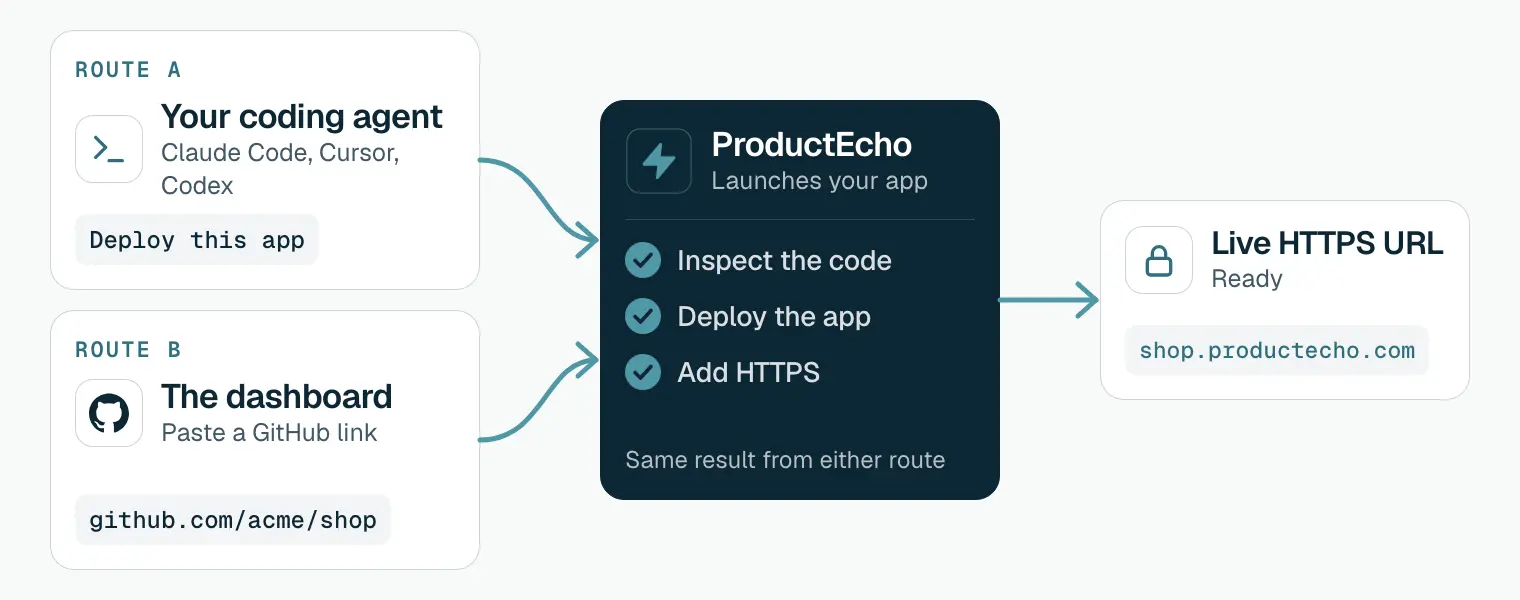
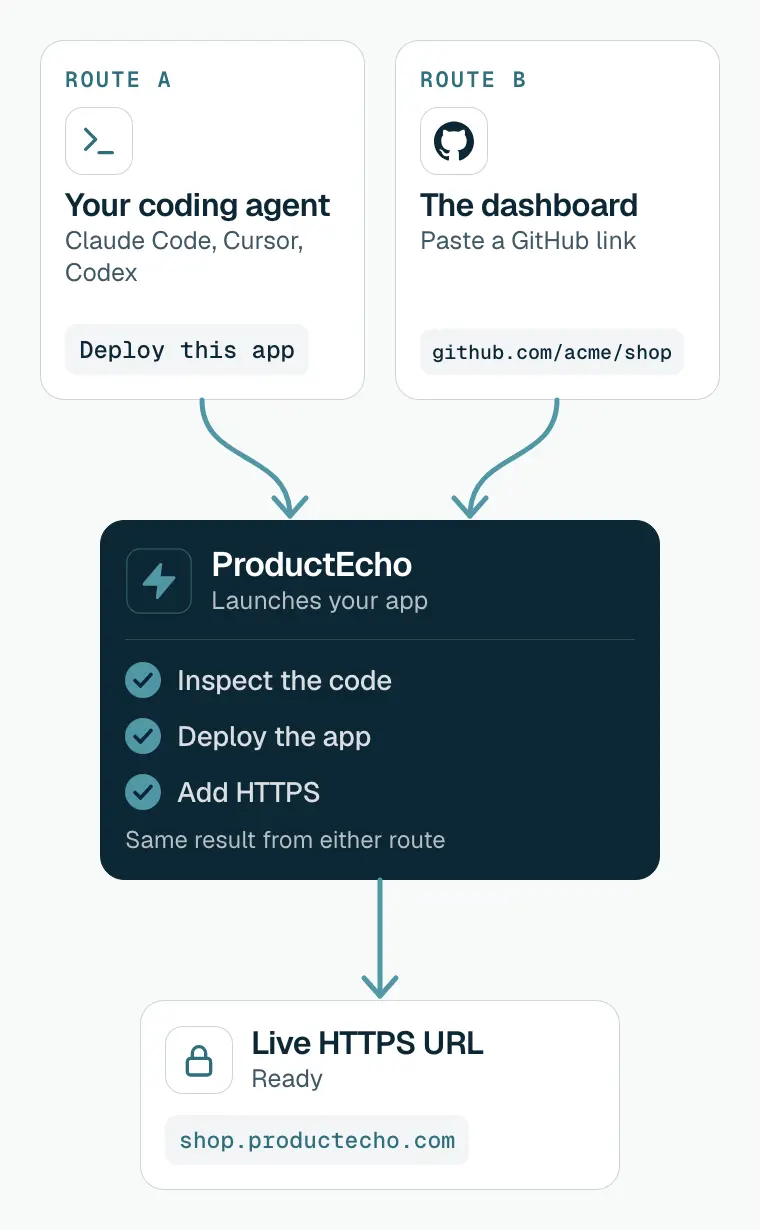
Route A: from your coding agent
Connect your coding agent
Ask it to deploy your app
Open the live URL
A prompt like this is enough:
The connection guide covers the static pe_live_... API key fallback for that case. Never paste a static key into an agent chat or prompt.
Route B: from the dashboard
Create your account
Start a new app
Paste your GitHub link
https://github.com/acme/shop. The first time, install the ProductEcho GitHub App on the repository when the console asks.Pick a branch and deploy
main, and start the deploy. Later pushes to that branch redeploy the app. Deploy from GitHubOpen your app
Check your app
Either way, your app appears on the Applications page of the ProductEcho console with its status and public address.
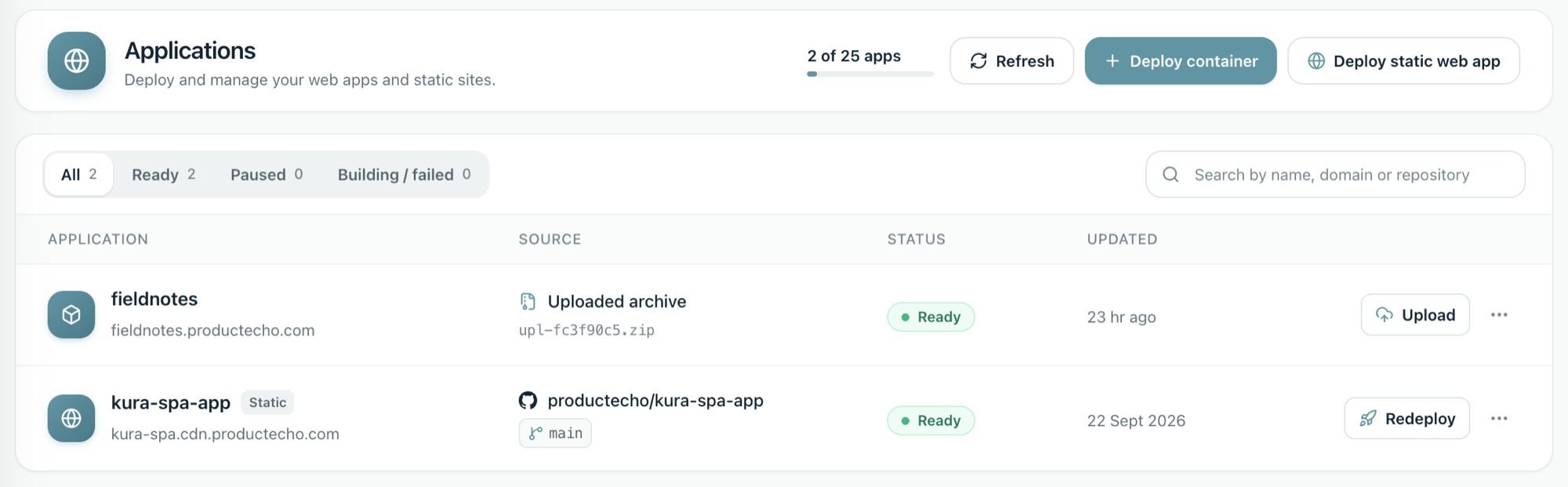
What to do next
- Learn the words ProductEcho uses, such as workspace, app and deployment: Core concepts.
- Add a PostgreSQL database to your app: PostgreSQL databases.
- See one prompt for each task, including your own domain: Deploy with a coding agent.